
Chrome Bridge environment setup
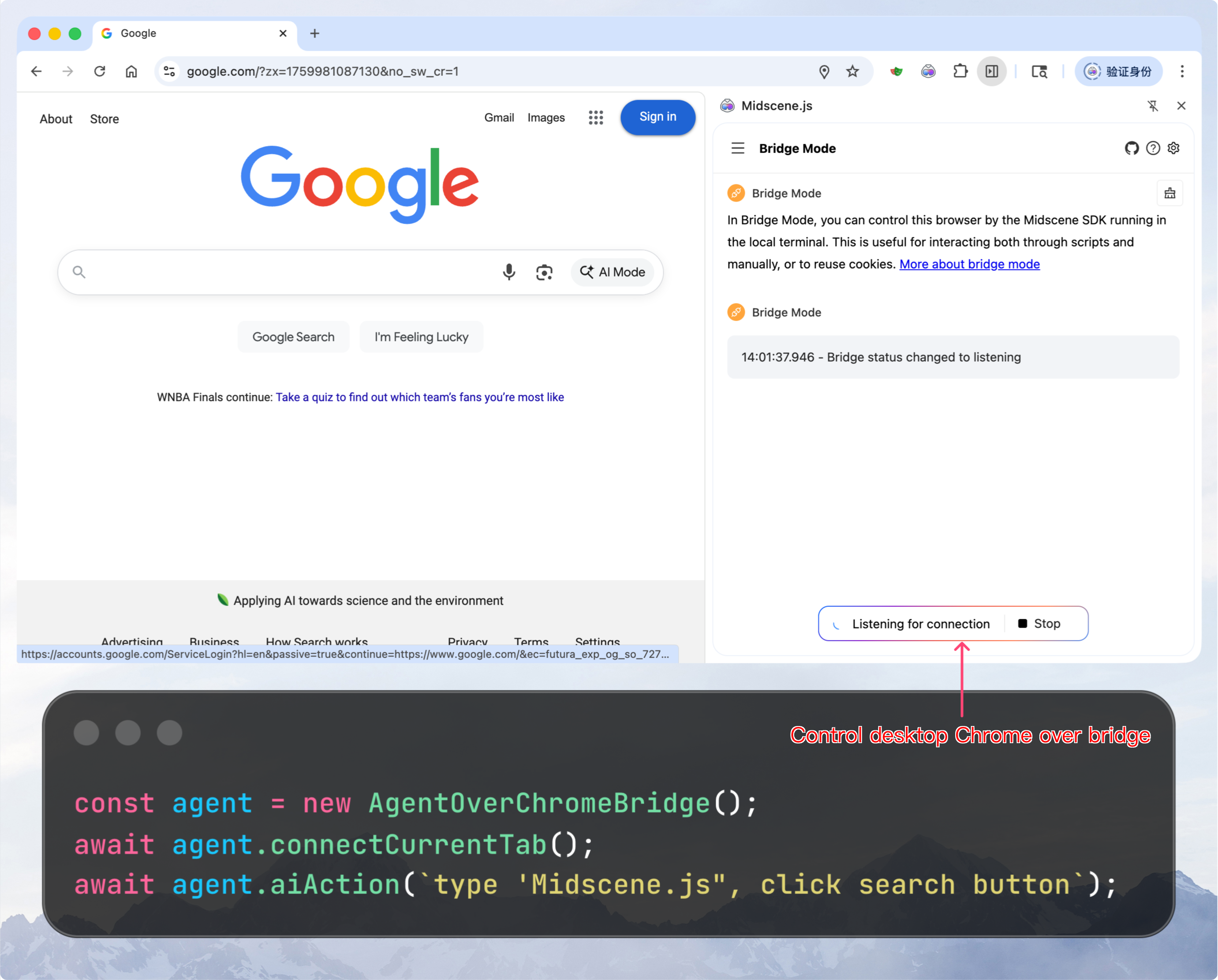
Chrome Bridge enables Node.js scripts to control your desktop Chrome browser through the Midscene Chrome extension, allowing you to reuse existing login sessions, cookies, and browser extensions. The Node.js process runs the Bridge Server and handles AI model calls, while the Chrome extension connects to that server and executes operations on browser tabs.
Installation and permissions
- Install the Midscene Chrome extension. Once installed, it automatically listens for local connection requests in the background.
- (Optional) If your script needs to upload local files, open
chrome://extensions, go to the Midscene extension details, and enable Allow access to file URLs. Switch back to your targethttp(s)://tab before connecting.
Validate model calls and page interactions in Playground
Follow Web environment setup to open the extension sidebar, save your model settings, run an aiAct action and aiAssert assertion in TodoMVC, and inspect the steps and screenshots.
The extension Playground controls the current page without a Node.js Bridge Server. After trying it, run the connection check below to verify that a script process can control Chrome through the extension.
Verify the connection
The minimal script below verifies the connection between your Node.js environment and the Chrome extension. It does not invoke any AI methods, so no model configuration is required.
1. Install dependencies
Install Node.js (^20.19.0 || ^22.12.0 || >=24.0.0), install pnpm, and run pnpm init in your project directory (skip if package.json already exists). Then install the dependencies:
2. Write the code
Save the following code as bridge-check.ts:
3. Run and authorize
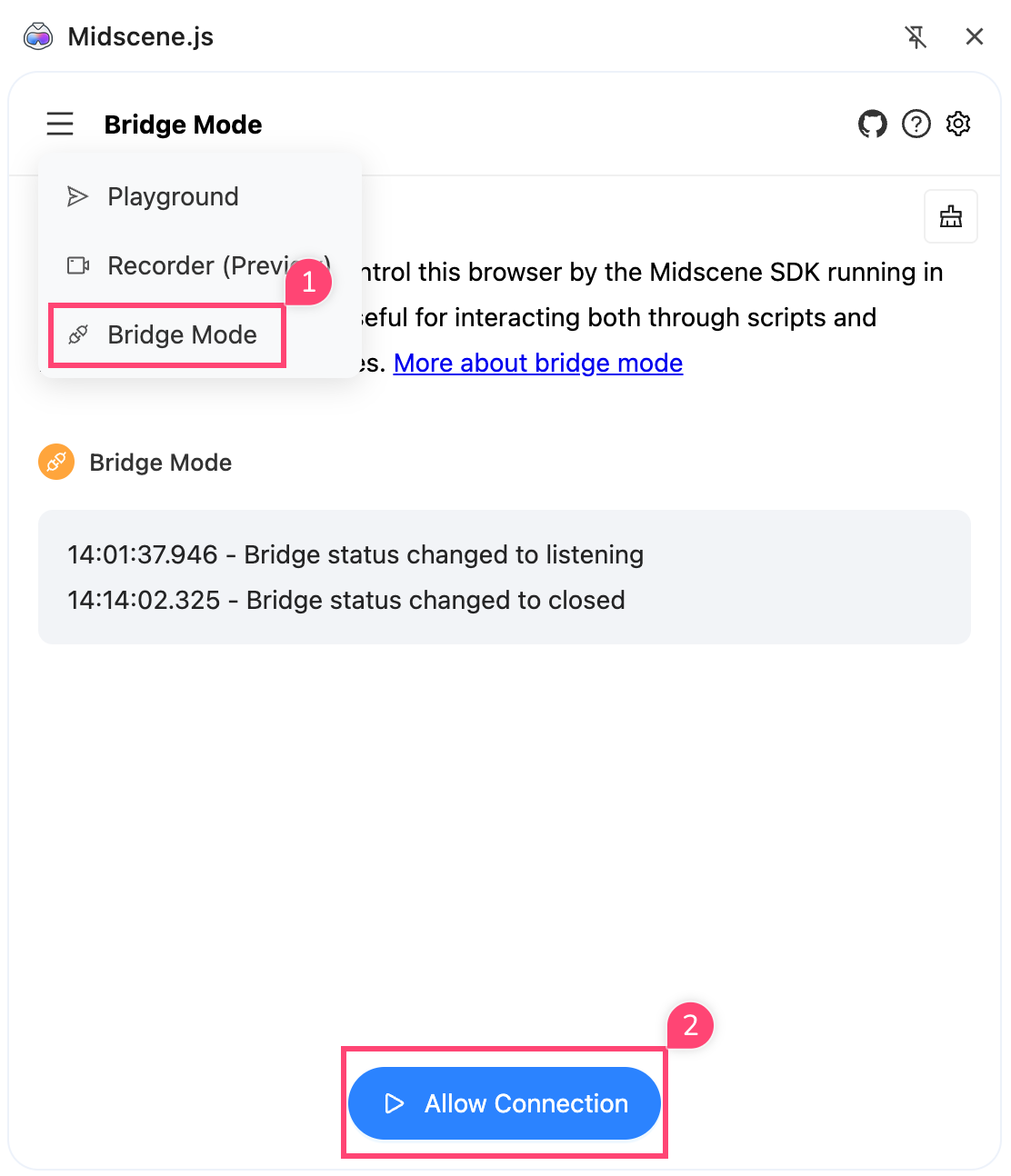
When prompted by the Chrome extension, click Allow to approve the connection (choose Always Allow to automatically approve future connections; you can reset this anytime in the extension's Bridge Mode panel).
Once connected, Chrome opens example.com in a new tab, and the terminal prints Chrome Bridge connected followed by the current tab list. The script then finishes and disconnects, leaving the newly opened tab in Chrome. On the extension icon badge, a yellow dot indicates that it is listening for connections, while a green dot indicates an active connection (because this check script disconnects immediately after completion, the badge will briefly turn green and then return to yellow).
Next steps
After validating the environment and Playground, choose how to continue:
- Write YAML tests: create a project, run cases, and inspect reports with Midscene Test.
- Write automation workflows: follow Standalone automation scripts and select the Chrome Bridge example.
- Look up platform APIs: see the Chrome Bridge SDK API reference for constructor options, platform methods, and cleanup.
Model settings saved in Playground are not automatically shared with test or script processes. Copy the validated settings into your project’s .env and load them as described in the integration guide. Keep the device connection tools, services, and permissions available.
The Midscene Test Web template uses Playwright by default. To use Bridge, adapt the project configuration to connect and destroy an AgentOverChromeBridge and register it with createMidsceneNodes(). Replace the template’s Playwright page initialization.
Chrome Bridge does not expose a Playwright Page. To integrate with Playwright Test, follow Web environment setup.
Remote access configuration
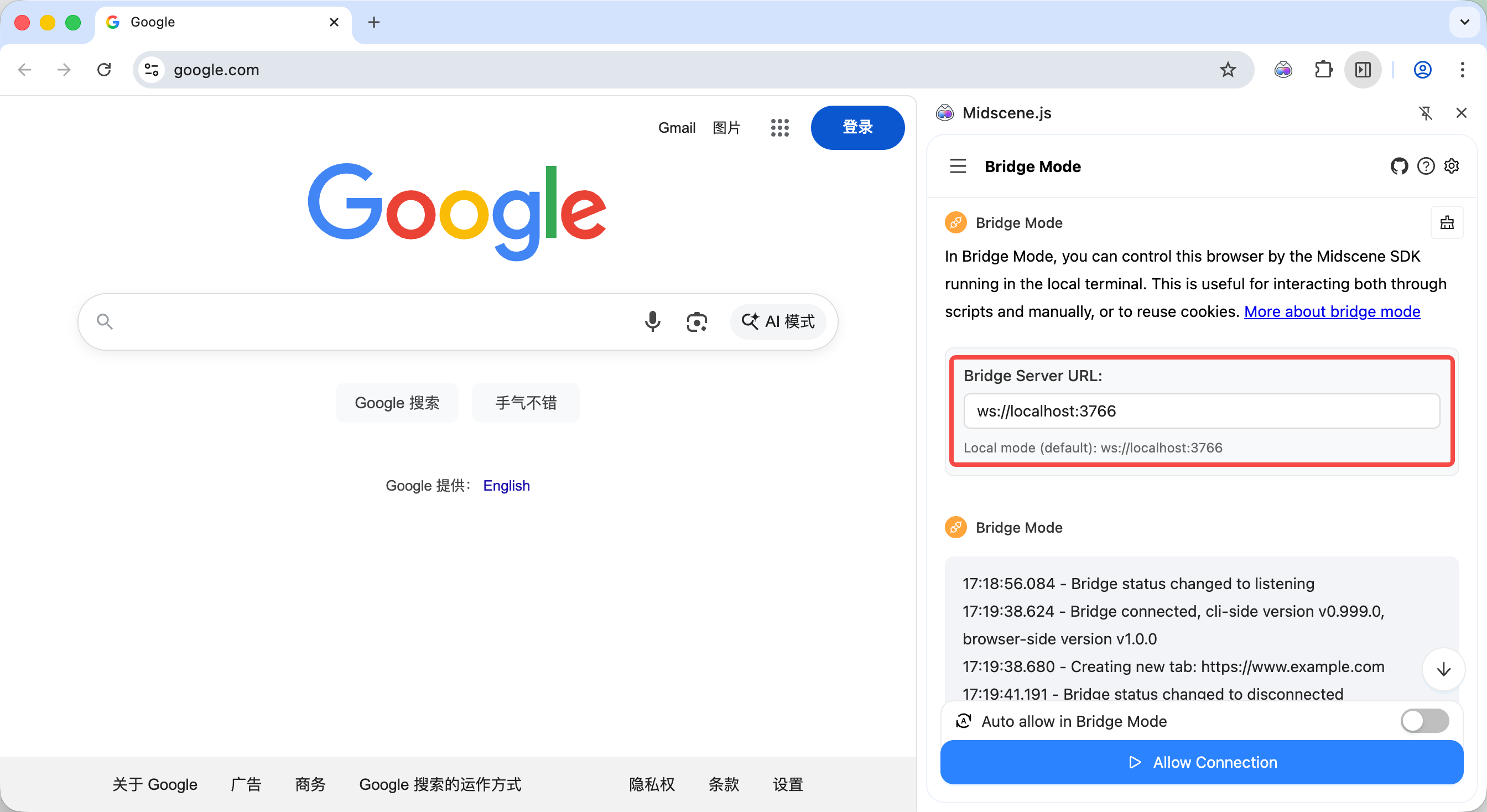
By default, the Bridge Server binds to 127.0.0.1 and only accepts connections from a Chrome extension on the same machine. For cross-machine setups (for example, running the script on Machine A and Chrome on Machine B), enable remote access on both sides:
1. Server side (Node.js script)
2. Client side (Chrome extension)
- Open the Chrome extension side panel and switch to Bridge Mode.
- Enter the server address in the Bridge Server URL field:
- Local connection:
ws://localhost:3766(default) - Remote connection:
ws://192.168.1.100:3766(replace with the IP address of the machine running the script)
- Local connection:
- Run your script and click Allow in the extension's confirmation dialog.
Enabling remote access exposes the Bridge Server over the network. Make sure to:
- Use it only within trusted private networks;
- Restrict incoming connections with firewall rules;
- Never expose the Bridge Server port to the public internet.
Troubleshooting
The extension fails to connect
Verify that Chrome is open, the Midscene extension is enabled, and the Bridge Server URL in the extension's Bridge Mode panel matches the address and port your script is listening on (local default: ws://127.0.0.1:3766). For remote connections, also verify that the script has allowRemoteAccess: true or the appropriate host configured, and that the port is reachable through your firewall.
How do I re-prompt for connection authorization?
Reset the saved permissions in the extension's Bridge Mode panel, then rerun the script to trigger the confirmation dialog again.
Where should I configure model credentials?
When calling AI methods such as aiAct or aiAssert, configure your model credentials in the Node.js environment running the script. Model settings entered in the extension's Playground apply only to the Playground itself and are not shared with Node.js scripts. Also note that passing the connection check above only verifies bridge communication, not your model configuration.